Why Webflow + no-code is a fast path to business outcomes
Webflow gives companies something that is often missing in the traditional approach to building websites: deployment speed without having to involve a development team for every change. For marketing, this means the ability to publish landing pages, update content, and iterate messaging without multi-week queues. For IT: fewer “tickets,” fewer small deployments, and greater control over what actually requires code.
When you add no-code/low-code to Webflow, you gain not only a nice website, but a working process: from lead acquisition, through qualification, to handoff to sales and reporting. This approach is especially cost-effective when time-to-market matters (e.g., a new offer, a campaign, market entry) or when the company wants to optimize costs and not build everything “hard-coded” in code.
When do companies most often “add” tools to Webflow? The most common areas are: CRM integrations, notification and task automations, collecting leads in a more conversion-focused way, content management, and measuring the effectiveness of activities (what works, what doesn’t, where leads drop off).
The most common problems companies face without a tool ecosystem around Webflow
Webflow alone solves the problem of building and maintaining a website, but it does not fully solve the operational problem: what happens next with the lead and the data. In practice, companies without a coherent stack around Webflow fall into recurring traps.
1) Manual transfer of leads to the CRM and lack of a consistent handling process. A lead lands in an inbox, someone pastes it into the CRM, someone else forgets to call back, and after a week it’s unclear whether the topic is still alive. Result: slower response and lower conversion.
2) Scattered marketing data and lack of measurability. Campaigns are running, but you don’t know which source delivers quality leads and which delivers only “traffic.” Without events, conversions, and consistent tagging, budget decisions are based on intuition.
3) Bottlenecks: every change requires IT or an agency. A small change in a form, adding a new field, an additional marketing consent, new lead routing—everything becomes a project. Costs rise and speed drops.
4) Risk of rising maintenance costs and implementation debt. The more manual workarounds and ad-hoc integrations, the harder it is to maintain. After a few months, the questions appear: “who understands this?” and “what happens when it stops working?”.
The business conclusion is simple: without an ecosystem of tools, Webflow can be a great website, but a weak “growth engine.” With no-code/low-code you can build an engine that is fast, measurable, and cheaper to maintain than traditional development.
How to choose no-code tools for Webflow: criteria for IT managers
Tool selection is best driven not by a list of “most popular,” but by which process should run faster, cheaper, and more reliably. Below are criteria that work well in companies where IT is responsible for security, data consistency, and maintenance.
Fit to the process. Different tools are best for lead management, others for content, others for automation and reporting. First describe the process: input (source), processing (qualification), output (CRM, task, report), and only then choose tools.
Security and compliance. Check roles and permissions, activity logs, the ability to restrict access, and how the tool supports GDPR in the context of data (e.g., retention, export, deletion, access control). In practice: who sees contact data, who can export it, who can change automations.
Scalability and costs. Licenses, operation limits, per-user costs, per-scenario execution costs. A cheap tool to start can be expensive at scale, and a more expensive one can pay off if it reduces manual work and the number of errors.
Ease of handoff to operations (ownership). After implementation, someone has to maintain it: marketing ops, sales ops, IT, or an external partner. Pay attention to documentation, repeatability of configuration, the ability to version, and the simplicity of making changes without the risk of the process “breaking apart.”
Integrations. Does the tool have ready-made connectors? Does it support webhooks? Does it have an API? How stable is it over time? For Webflow, webhooks/form submissions, CRM integrations, and the ability to pass source data (UTM, referrer) are especially important.
Automations and integrations: Make (Integromat) and Zapier as the “backbone” of processes
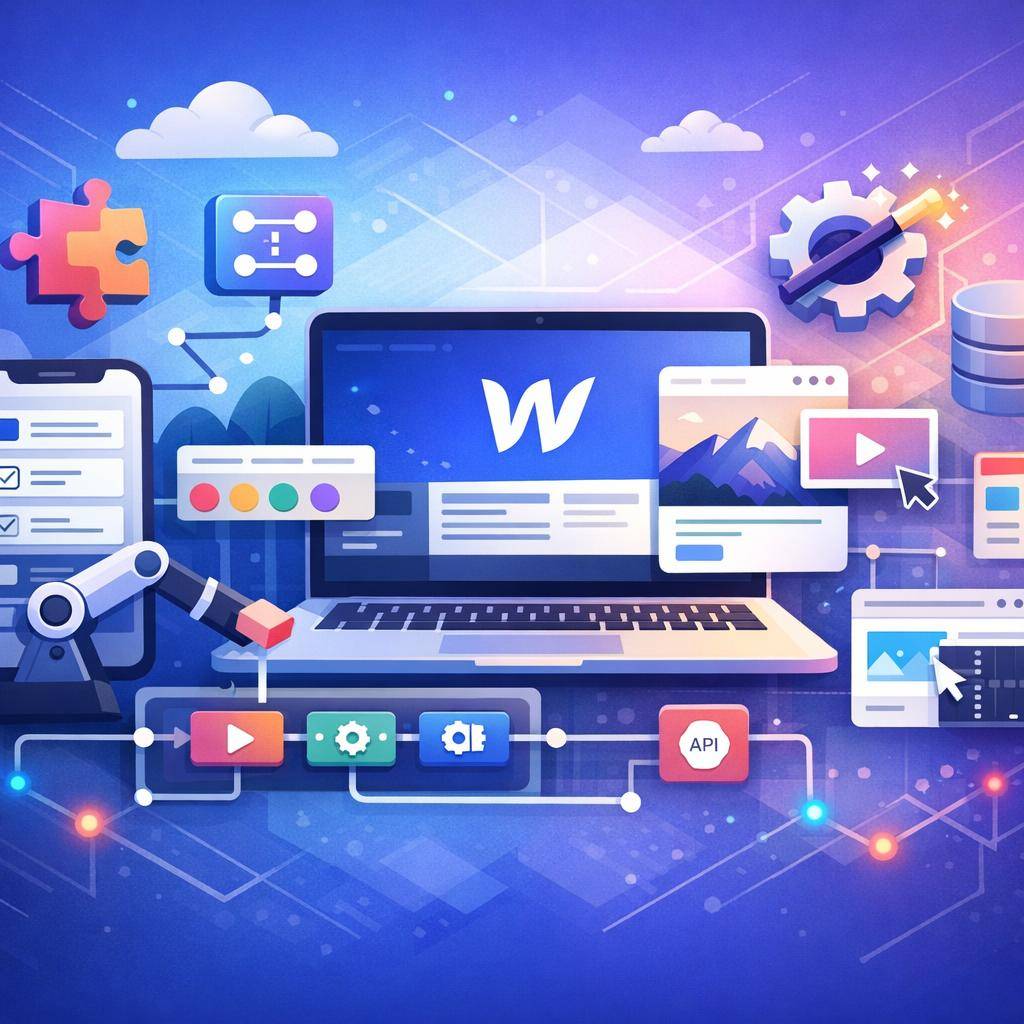
If Webflow is the “front,” then Make and Zapier are often the backbone connecting the website with the CRM, marketing tools, Slack, spreadsheets, databases, and reporting. The choice between them depends on complexity and how much you want to control the flow.
When to choose Make. When scenarios are more complex: branches, conditions, several systems along the way, data validation, lead enrichment, deduplication. Make gives a lot of control and often also allows better cost optimization with a higher number of operations.
When to choose Zapier. When you need to launch simple integrations quickly and you care about simplicity. Zapier has a very broad library of ready integrations and is convenient for “first automations,” especially in teams that want to move fast without extensive logic.
Examples of use with Webflow (practical, no theory):
Example A: Lead from a Webflow form → CRM (HubSpot/Pipedrive) → Slack/Teams to the owner → follow-up task with an SLA deadline (e.g., 15 minutes) → entry into a reporting sheet or an operational database.
Example B: Lead from a paid campaign → automatic attachment of UTM parameters → company domain enrichment (e.g., industry, size) → routing to the appropriate sales rep → “high priority” tag if it meets criteria.
Example C: Demo request → automatic email confirmation → calendar booking → status update in the CRM → reminder if there is no response within 24h.
Best practices that save time and nerves:
1) Error handling and retries: plan retries, a queue, and alerts instead of assuming it will “always work.”
2) Monitoring: simple error notifications to Slack/Teams and periodic log reviews.
3) Scenario versioning: make changes in a controlled way, with a description and date, not “live” during peak hours.
4) Data minimization: send only what the process needs, not “everything everywhere.” This helps with GDPR and data hygiene.
Forms and lead capture: Typeform, Tally, and Jotform
A form is often the cheapest way to achieve real conversion growth without rebuilding the entire site. In Webflow you can build forms natively, but no-code tools provide additional capabilities: better UX, conditional logic, qualification, attachments, and faster iterations.
Typeform. Best when the priority is user experience and conversion in multi-step forms (e.g., lead qualification, surveys, initial briefs). Works well when you want to “have a conversation” instead of showing a long list of fields.
Tally. Fast, lightweight forms and often a favorable cost when you need many forms (e.g., campaign landing pages, sign-ups, simple submissions). A good choice when simplicity and quick publishing matter.
Jotform. Advanced forms with logic, attachments, and more “process-oriented” use cases (e.g., applications, requests, internal forms, required documents). This is an option when the form is part of a larger workflow.
Integrating with Webflow in practice:
1) Embedding the form on a Webflow page (embed) and keeping a consistent look.
2) Webhooks: sending data to Make/Zapier immediately after submission.
3) Automatic handoff to CRM and email tools: creating a contact, assigning an owner, tagging the source, sending confirmation.
How to measure business impact (specific metrics):
1) Lower cost per lead (CPL) thanks to higher form conversion.
2) Higher share of “qualified” leads (fewer junk submissions).
3) Shorter response time (time-to-first-response) thanks to automated notifications and tasks.
Objection: “Why do we need an external form if Webflow has its own?”
If the process is simple, the native form is enough. However, when you want to qualify leads, apply conditional logic, test question variants, and iterate quickly without touching the site, tools like Typeform/Tally/Jotform usually pay back in time saved and lead quality.
CRM and sales operations: HubSpot, Pipedrive, and Airtable as a lightweight operational database
The biggest loss in many organizations does not come from a lack of leads, but from a lack of process after acquiring them. A CRM is where a lead should become a sales opportunity, not an “email in an inbox.”
HubSpot. A good choice for companies that want a coherent marketing + sales + automation system. Works well when you want a single platform, funnel reporting, and nurturing activities. It often reduces the number of tools because many functions are “inside.”
Pipedrive. A simple pipeline, fast implementation, and clear sales rep workflows. Good when you want to organize sales without building a heavy ecosystem. Great for companies that want to quickly increase process discipline and measure activities.
Airtable. A flexible database for operational processes: catalogs, workflows, statuses, assignments, custom fields. It often acts as a “light operational layer” between Webflow and core systems, especially when the process is unusual or changes dynamically.
Webflow scenarios that genuinely take load off the team:
1) Lead scoring: basic scoring based on form answers and traffic source.
2) Owner assignment: routing by country, industry, company size, or service type.
3) Response SLA: automatic tasks and escalations when a lead hasn’t been handled in time.
4) Reporting: how many leads, what quality, from which campaigns, response time, win rate.
IT tip: define a “single source of truth.” Decide where the primary truth about the customer lives: in the CRM or in the operational database. The rest of the tools should adapt. This reduces duplicates, conflicts, and integration chaos.
Databases and internal apps: Xano, Supabase, and Retool (low-code)
Webflow works great as a presentation layer, but sometimes a company needs more than a website and CMS: user accounts, dynamic data, custom processes, or an admin panel. That’s when the topic of a “back end” comes in—without building it from scratch.
When Webflow needs a back end: user login, a record database (e.g., offers, bookings, submissions), approval processes, two-way integrations, data that must be controlled and auditable.
Xano. Fast building of APIs and business logic without classic backend development. Good when you want to launch a working system quickly and iterate instead of writing everything from scratch. From a cost perspective, it often wins on implementation time.
Supabase. A database and authentication in an approach friendly to technical teams. It fits well when IT wants more “engineering” control and the ability to extend, while still using ready components (e.g., auth, storage) instead of building them independently.
Retool (low-code). Very fast admin panels and tools for operations: record browsing, editing, approvals, bulk actions, API integrations. Ideal when you want to give operations teams a tool to work with data without creating a full application from scratch.
Business impact: less developer work, faster iterations, lower maintenance cost. Instead of building a dedicated admin panel in code (time and budget), you have it in days, not months—and you can invest in what truly differentiates the product or service.
Personalization and testing: Optimizely/VWO (alternatively a lightweight stack) + segmentation
If your Webflow site is already working, the next growth step is often not a redesign, but conversion optimization. A/B testing and personalization can improve results without rebuilding the entire site.
Why testing and personalization in Webflow: because often the cheapest revenue growth is conversion growth. If you have the same traffic but convert it into leads better, ROI increases without increasing media spend.
What to test (examples that make business sense):
1) Headline and value proposition: “what do I get and who is it for”.
2) CTA: text, placement, number of buttons, “book a demo” vs “see how it works”.
3) Form: number of fields, question order, multi-step version, qualification.
4) Section layout: social proof, case studies, pricing, FAQ before the form.
Traffic and message segmentation: tailoring content to the source (e.g., LinkedIn vs Google), industry, intent (e.g., “I’m looking for an agency” vs “I’m comparing solutions”). Even simple segmentation rules can improve conversion because the user sees a message “for them.”
A pragmatic approach: short cycles, quick hypotheses, data-driven decisions. You don’t need a multi-month CRO program. A cadence is enough: hypothesis → test → insight → implementation → next test.
Analytics and measuring outcomes: GA4, Google Tag Manager, Hotjar/Clarity
No-code/low-code makes sense when the impact is visible in numbers. That’s why analytics should be part of the stack, not an add-on “someday.” For companies and IT, it’s crucial that measurement is consistent, repeatable, and maintainable.
Minimum measurement setup for Webflow:
1) Events and conversions: form submission, CTA click, form start, meeting booking.
2) Lead sources: UTM, referrer, campaign, medium.
3) Lead quality: combining CRM data (e.g., MQL/SQL) with marketing data.
Google Tag Manager as a way to keep things organized. GTM lets you manage tags without constant code changes and without the risk that each campaign will “break” the implementation. This saves time and reduces dependence on IT for ongoing marketing needs.
Hotjar/Clarity. Qualitative data: session recordings, click maps, scroll. This way you don’t guess why people aren’t converting—you see where they get lost, what they ignore, what they click “for nothing.”
Business reporting: KPIs, acquisition cost, conversion, time to contact. In practice: one dashboard that connects marketing and sales, instead of several inconsistent reports.
Ready-made “tool packages” for Webflow (depending on the company’s goal)
In companies, a “package” approach most often wins: you choose a set of tools for a specific goal and process, instead of building a complex ecosystem right away. Below are proven configurations that deliver quick results and are relatively simple to maintain.
Lead Gen package (fast lead acquisition and handling):
Webflow + form (Tally or Typeform) + Make/Zapier + CRM (Pipedrive or HubSpot) + GA4/GTM.
Result: less manual work, faster response, better campaign measurability.
Content & SEO package (publishing, order, and reporting):
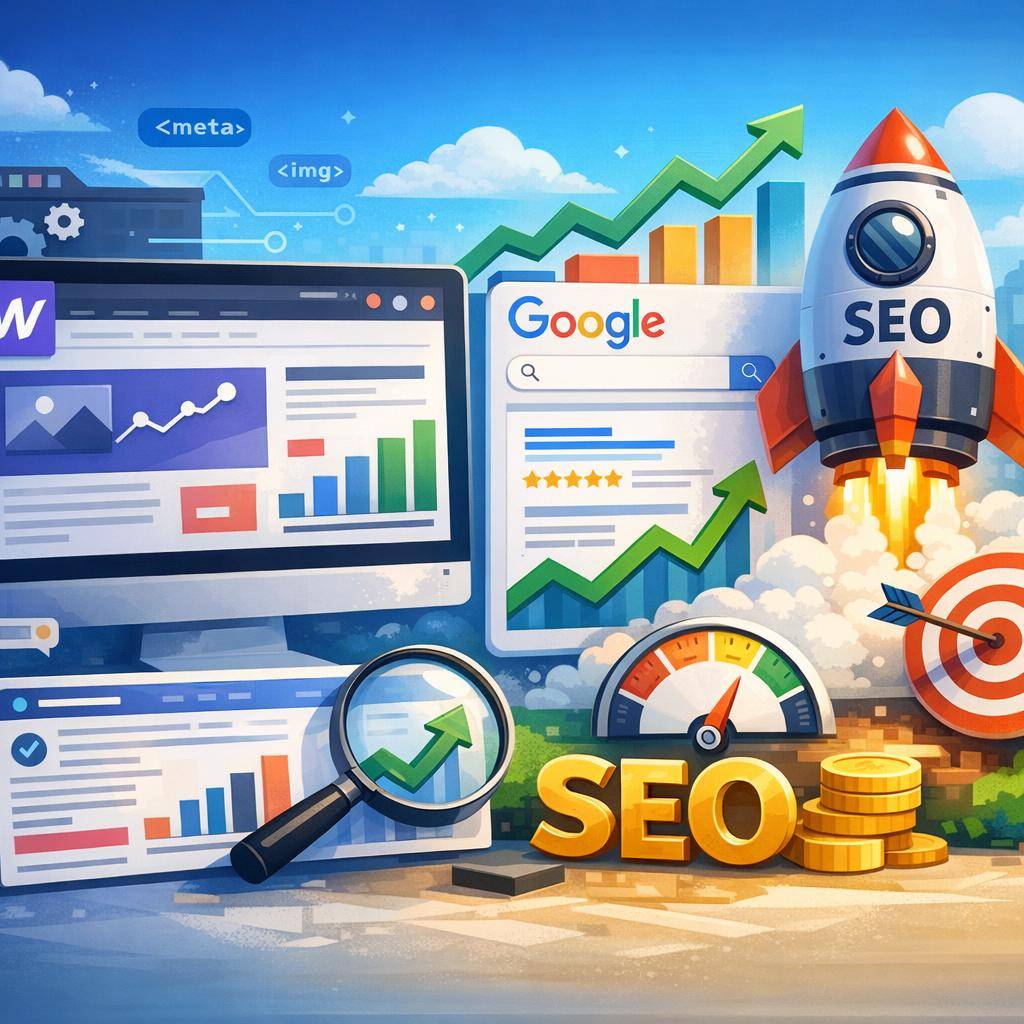
Webflow CMS + publishing and distribution automations + rank monitoring + recurring reporting.
Result: faster publishing, lower content operations cost, better control over what generates traffic and leads.
Operations package (front in Webflow, processes in the background):
Webflow (front) + Airtable/Xano/Supabase (data) + Retool (panel) + Make/Zapier (automations).
Result: internal processes run without building a dedicated application from scratch, and operations teams have tools to work.
How to choose without burning budget: start with one process with the biggest impact on revenue or costs in the next 90 days. Only then add more elements. This reduces risk and accelerates ROI.
How much you can gain: time and cost savings vs traditional development
The biggest advantage of no-code/low-code combined with Webflow is speed and total cost (not just the start-up cost). In traditional development, you pay not only for building, but also for every change, maintenance, fixes, and the team’s “queue.”
Reduced implementation time: iterations in days/weeks instead of months. This has real value because you test the market faster, improve conversion faster, and close the feedback loop faster.
Lower maintenance costs: fewer tickets to IT, fewer code changes, lower risk of “breaking” the implementation with a small modification. A well-designed no-code stack is predictable to maintain.
Better collaboration: marketing/ops can implement some changes independently in a controlled way, and IT focuses on critical things: security, architecture, core integrations.
How to calculate ROI (a simple model):
1) Tool + implementation cost (one-time and monthly).
2) Saved team time (marketing, sales, ops, IT) converted into cost.
3) Revenue increase from faster response and higher conversion (e.g., shorter lead response time).
4) Opportunity cost in the traditional model (e.g., a campaign starts 4 weeks later).
Objection: “No-code is good for the start, but we’re ‘too big’.”
In practice, large organizations use no-code/low-code precisely to offload IT and speed up changes in areas that are not core systems. The key is architecture, governance, and clear rules: what we build in no-code and what stays in critical systems.
How Havenocode implements a no-code/low-code stack for Webflow (without chaos and tool debt)
Implementing tools around Webflow can be either a quick success or a source of chaos. The difference usually doesn’t come from the tools themselves, but from the approach: process, data, responsibilities, and monitoring. At Havenocode, we focus on implementations that deliver quick results but are also maintainable.
1) Process and data audit. We determine what to automate, where the bottlenecks are, what the KPIs are, and what the current information flow looks like (e.g., from the form to the CRM and beyond). This way, tools are an answer to a problem, not a goal in themselves.
2) Integration architecture design. We define data sources, the “single source of truth,” responsibilities (who owns the process), access rules, and monitoring. This stage minimizes risk and makes scaling easier.
3) Fast pilot (MVP) + iterations. We implement the first highest-impact process (e.g., lead → CRM + routing + notifications + analytics), and then iterate based on data. This is the fastest path to ROI.
4) Documentation and handoff. We create maintenance rules, checklists, scenario descriptions, permissions, and a change process. This way the solution doesn’t “hang” on one person.
Next step: a free consultation and tool recommendations for your Webflow
If you’re considering implementing or optimizing no-code/low-code around Webflow, you’ll reach a sensible solution fastest when you base it on a specific process and KPIs, not a random list of tools.
What to prepare for the consultation:
1) Business goal (e.g., more demos, shorter response time, less manual work).
2) Current tools (CRM, email, analytics, messengers, databases).
3) Lead volume and acquisition channels (an estimate is enough).
4) IT and compliance constraints (roles, GDPR, security requirements).
What you’ll receive: a stack proposal tailored to the process, a data flow map, implementation priorities, and “quick wins” that can be done first.
Scope definition: integrations, automations, analytics, CRM, databases—only what has business justification.
Checklist: 10 control questions before choosing no-code tools for Webflow
1) Which process will have the biggest impact on revenue or costs in the next 90 days?
2) Where is the “single source of truth” for lead/customer data?
3) What are the security and access requirements (roles, audit, GDPR)?
4) How will we monitor integration errors and data quality?
5) Who will own the process after implementation (business/IT)?
6) What are the critical KPIs: response time, conversion, lead quality, acquisition cost?
7) Do we need two-way integration (synchronization), or is one-way enough?
8) How will we manage changes: testing, versioning, deployment windows?
9) What are the tools’ limits and costs at scale (operations, users, records)?
10) What does the contingency plan look like: what do we do when an integration stops working?
FAQ
Is Webflow enough without additional no-code tools?
For simple websites and basic forms, often yes. However, when leads, CRM, automations, routing, response SLAs, and measuring outcomes come into play, additional no-code/low-code tools usually pay back quickly through time savings and lower operating costs.
Make or Zapier—which is better for Webflow?
Zapier works well for quick, simple integrations and when you want an easy start. Make is better for more complex processes where flow control, conditions, cost optimization, and greater scenario flexibility matter.
How to avoid integration chaos and “tool debt”?
Start with one key process, define the source of truth for data, add error monitoring and documentation. Choose tools based on KPIs and maintainability, not on the number of features. A good practice is also clear ownership: who is responsible for the process after implementation and how changes are introduced.
Is no-code/low-code safe for companies and IT departments?
Yes, if the implementation has architecture, access roles, data handling rules, and monitoring. The key is consciously selecting tools to match the organization’s requirements and limiting access to data and automations only to people who truly need it.
How long does it take to implement a basic stack for Webflow?
First results (e.g., lead → CRM + notifications + basic analytics) can often be implemented in a few days to 2–3 weeks. Time depends on process complexity, data quality, number of integrations, and security requirements.
What’s next?
Book a free consultation with a Havenocode expert and see how no-code/low-code can streamline your business.
Suggested steps to quickly move from “we’re considering it” to “it works and we measure the impact”:
1) A short call (goal, current process, tools, constraints).
2) Stack recommendation and a data flow map around Webflow (minimum variant and target variant).
3) MVP pilot of one highest-impact process (e.g., end-to-end lead handling).
4) Iterations and optimization based on KPIs (conversion, response time, data quality, cost).
If you want to implement changes in Webflow faster, reduce the costs of traditional development, and organize processes without integration chaos, a consultation will help determine the best path and priorities.


.png)
-min.avif)

%2520(1).avif)