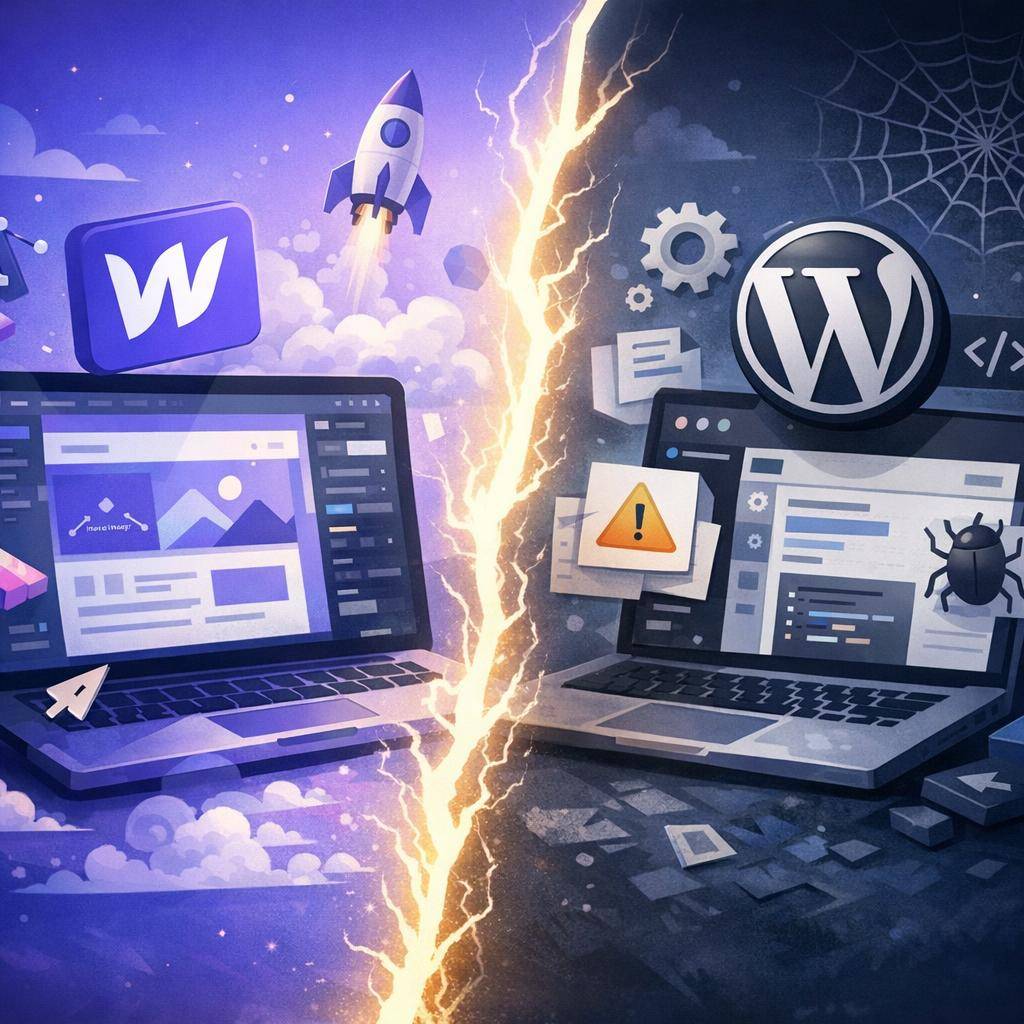
Webflow or WordPress? A decision that affects sales and your team’s time
Choosing a platform for your website is not a “matter of taste.” For a business owner, it’s a decision about how much time the team will spend publishing content, how often the site will require technical intervention, how fast it will load, and how much risk you take on in terms of security and outages. These factors translate directly into conversion (inquiries, leads, sales), maintenance costs, and the pace of marketing growth.
The most common scenario looks like this: a WordPress site “works,” but it’s slow, has more and more plugins, updates can break things, and implementing new sections or landing pages takes longer than it should. As a result, marketing asks for small changes and you hear: “it’s not that simple, we need to check compatibility, make a backup, test it.”
In this article you’ll get concrete criteria for choosing Webflow vs WordPress, practical business scenarios, and checklists that will help you make a decision without guessing.
Who is Webflow a better choice for, and when does WordPress make sense?
There isn’t one platform that’s “best for everyone.” There are situations where Webflow gives you an advantage faster and with less risk, and others where WordPress can still be a sensible choice.
Quick decision map (practically):
1) Company website + campaign landing pages
Webflow very often wins: fast implementations, stability, great control over the front end, good performance.
2) Blog and content marketing
Both options make sense. Webflow provides a clean structure and a convenient CMS; WordPress has a huge ecosystem. The key is who publishes and how often, and whether you need specific editorial features.
3) Small e-commerce
Webflow E-commerce can be sufficient, but not always. If the store is going to grow toward advanced promotions, many variants, warehouse integrations, and advanced product analytics, it’s often better to consider a different approach (sometimes WordPress/WooCommerce, sometimes Shopify, sometimes a headless architecture).
4) Content portal / service with unusual roles and permissions
WordPress can make sense if you rely on proven, mature solutions and accept greater maintenance complexity. Webflow can also be extended, but you need to assess CMS and logic limitations upfront.
When WordPress makes sense:
- when you need very specific functions based on proven plugins (e.g., advanced membership, advanced content types with custom workflows, unusual integrations)
- when you have a technical team that consciously maintains the plugin ecosystem, tests updates, and ensures security
- when you have requirements that Webflow doesn’t cover without a large amount of custom code
When Webflow is usually the better choice:
- when you care about fast implementations and marketing iterations
- when design and brand consistency are critical (UI/UX, typography, responsiveness, animations)
- when you want to reduce technical risk and the number of “moving parts”
- when the team needs to publish content without constantly involving a developer
Architecture differences: builder + hosting vs a plugin-based CMS
Webflow is an integrated environment: design, CMS, hosting, CDN, and publishing are all in one ecosystem. That means fewer elements that can “clash” with each other. In practice: fewer conflicts, fewer post-update outages, less dependence on the quality of random add-ons.
WordPress is flexible thanks to themes and plugins. That flexibility is both its greatest strength and its source of problems. Every plugin is additional code, additional updates, potential security vulnerabilities, and a risk of performance drops.
Business consequence: with WordPress you often pay not only for implementation, but also for ongoing technical maintenance. With Webflow you more often pay for the platform, but you gain predictability and fewer “surprises.”
Security: lower attack risk and fewer critical updates
WordPress is the most popular CMS in the world, so it’s also a frequent target for attacks. In practice, the problem is rarely “WordPress itself,” and more often: plugins, themes, lack of updates, weak passwords, poorly configured hosting.
Webflow reduces the attack surface on the CMS and hosting side because it doesn’t rely on hundreds of externally installed plugins. Fewer elements to update on your side means fewer situations like “urgent patch because a vulnerability was found in the forms plugin.”
What this means in practice for a company:
- fewer critical “do it now” updates
- lower risk of a break-in via an outdated component
- calmer maintenance and less downtime
Typical objection: “But WordPress can be secured.”
Answer: yes, it can. The question is: do you want to build a security process (monitoring, update testing, backups, hardening), or do you prefer a platform that reduces the number of risk points from the start.
Performance and Core Web Vitals: speed that affects SEO and conversion
Site speed affects user experience, bounce rate, campaign cost (e.g., paid traffic where landing page quality matters), and SEO. Core Web Vitals are effectively a quality signal: if the site is heavy and slow, you lose part of your marketing impact.
Webflow offers hosting with a CDN and platform-side optimizations. This makes performance more predictable: it depends less on whether someone added yet another plugin that loads 5 additional JS libraries.
WordPress can be fast, but it requires discipline: good hosting, a lightweight theme, a reasonable number of plugins, caching, image optimization, script control. In practice, many sites grow “organically” and after 12–18 months become heavy.
Typical bottlenecks in WordPress:
- heavy “all-in-one” themes
- page builders generating an extensive DOM and excess styles
- too many tracking, popup, and slider plugins
- no order in script loading (everything on every subpage)
Business example: a service company runs a lead campaign. The landing page loads in 4–6 seconds on mobile because the theme and plugins add resources. After moving landing pages to Webflow and simplifying the structure, we often see lower bounce rates and better conversion because the user sees the offer and the form faster.
Content editing and team workflow: marketing without blocking the developer
In many companies, the problem isn’t that something can’t be done. The problem is that every change requires getting “in line” with a developer or technical person. That slows down publishing, A/B tests, landing page iterations, and offer updates.
Webflow Editor lets you edit content “on the page,” in the context of the layout. Well-designed components and CMS collections reduce the risk that someone accidentally breaks the layout. The marketing team can update content while the design layer stays consistent.
WordPress (Gutenberg or page builders) can be convenient, but it often leads to mess: mixing styles, pasting sections “from another page,” manual spacing fixes. Over time the site looks inconsistent and maintenance becomes harder.
Simple role process (to implement right away):
- Marketing: edits CMS content, creates posts, updates campaign sections within prepared components
- Sales/support: requests changes to the offer, case studies, FAQ, but does not edit the layout
- Technical person / partner (e.g., havenocode): develops components, ensures quality, performance, analytics, and SEO
Design and brand consistency: full UI control without compromises
If the site is meant to sell, design isn’t a “nice add-on.” It’s a tool that guides the user to action: contact, signup, purchase, booking. Webflow is both a design and implementation tool, which makes it easier to maintain consistency.
What Webflow gives you in practice:
- a system of classes and components that you can treat like a design system
- precise responsiveness control (not just “looks nice on desktop”)
- easier refinement of typography, grid, micro-interactions, and animations without wrestling with a theme
In WordPress you often start from a theme and adapt it to the brand. That can be quick at first, but long-term it can create compromises: “don’t touch that or it will fall apart,” “you can’t do that without digging into the theme,” “the animation slows the site down because of the builder.”
SEO in Webflow vs WordPress: what’s easier and what needs attention?
SEO is not just a plugin. It’s the sum of: content structure, speed, internal linking, HTML quality, headings, metadata, redirects, sitemap, and structured data.
Webflow makes it easier to control HTML/CSS and provides simple SEO settings for static pages and CMS collections. It’s easy to keep headings, structure, and URLs tidy. Additionally, performance is often more predictable, which helps with Core Web Vitals.
WordPress has huge capabilities thanks to SEO plugins. That’s a plus, but also a dependency: configuration, compatibility, theme quality, risk of content duplication. In practice you can do great SEO on WordPress, but you need to watch more elements.
Typical SEO risks (common on WordPress, but not only):
- indexing tag/category pages without a strategy (duplication and “thin content”)
- accidentally creating multiple versions of the same content (parameters, archives, authors)
- heavy scripts lowering CWV, which hurts content and campaign results
Mini SEO checklist when choosing a platform:
- can you easily set meta title and description for every subpage and content type?
- do you have control over headings and structure (H2/H3) without “fighting the theme”?
- are 301 redirects easy to maintain?
- will the site be fast on mobile after 12 months of growth?
Costs and maintenance (TCO): licenses, hosting, plugins, support, and downtime risk
Comparing costs as “Webflow subscription vs free WordPress” is misleading. WordPress as an engine is free, but the real cost is usually the sum of: hosting, paid plugins, paid themes, updates, support, fixes after conflicts, and downtime risk.
How to think about TCO (Total Cost of Ownership) over 12–24 months:
- implementation cost (design, implementation, content, analytics, technical SEO)
- maintenance cost (support, updates, monitoring, fixes)
- development cost (new landing pages, sections, tests, integrations)
- risk cost (outage, performance drop, security incident, lost leads)
Examples of “hidden costs” in WordPress:
- a forms plugin update causes lead submission errors, and the issue is discovered a week later
- after a theme update, the mobile layout breaks and the campaign loses effectiveness
- a growing set of plugins slows the site down, increasing lead acquisition cost
In Webflow you more often pay clearly: platform + implementation + optional development. Usually there are fewer “invisible” costs resulting from plugin conflicts.
Integrations and automations: CRM, newsletter, analytics, forms
Business rarely ends with the website itself. Integrations matter: CRM (e.g., HubSpot, Pipedrive), newsletter, booking tools, automations, analytics (GA4/GTM), ad pixels.
Webflow works well in a model where the site is a fast, stable front end + integrations via native connections, webhooks, or automation tools (e.g., Zapier/Make, depending on the stack). This approach usually reduces the number of “plugins that do everything.”
WordPress offers a huge selection of integrations via plugins. That’s convenient, but can be risky: plugin quality varies, and each additional one increases complexity and potential performance issues.
Practical recommendation: minimize the number of “plugin-based” integrations. If an integration is critical (e.g., a lead goes to the CRM and triggers automation), choose stable, predictable connections and test them during the implementation process.
The most common scenarios where Webflow has an advantage
1) Company website and campaign landing pages
When time matters: fast implementation, fast changes, fast iterations. Webflow makes it easier to build and modify sections without technical debt.
2) Rebranding and UX refresh
If you’re changing identity, layout, typography, components and want consistency on every subpage, Webflow lets you approach it systematically.
3) A marketing team publishes a lot of content
A well-designed CMS in Webflow allows publishing without the risk of “breaking” the layout and without constant developer support.
4) You want to reduce technical maintenance
Fewer plugin updates and a smaller attack surface mean less unplanned work and lower downtime risk.
Concerns about Webflow: limitations and how to work around them
Concern 1: “Is Webflow for me if I have unusual features?”
If you need custom logic, sometimes custom code comes into play (e.g., scripts, integrations, dynamic elements) or a hybrid architecture. The key is to assess this before you start, not after implementation.
Concern 2: “Migration from WordPress will kill my SEO”
Migration can be safe if you do it as a process. The most important elements are: moving content, preserving or mapping URLs, 301 redirects, updating the sitemap, controlling indexation, and correct analytics implementation.
Simple migration plan (no HTML lists, ready to copy):
- Inventory: list of URLs, content types, templates, organic traffic, and highest-value pages
- Mapping: old URL → new URL (or keeping identical addresses)
- Content transfer: import into the CMS, verify formatting and headings
- 301 redirects: complete, tested before publishing
- SEO QA: meta, canonicals, sitemap, robots, structured data (if needed)
- Post-launch monitoring: GSC, 404 errors, drops, indexation
Concern 3: “What about e-commerce and complex portals?”
There’s no single answer here. Sometimes Webflow is enough, sometimes it’s better to choose another platform, and sometimes to combine Webflow as the marketing layer with a separate system (e.g., a store) or a headless approach. At havenocode we start with requirements and risks so technology doesn’t become a bottleneck.
How havenocode approaches analysis to avoid bad decisions:
- business goals and conversion paths first, tools second
- identifying critical elements (integrations, SEO, performance, content editing)
- minimizing debt: fewer plugins, fewer workarounds, more stable solutions
How to choose: a short decision checklist (Webflow vs WordPress)
Answer the questions below. If most answers are “yes,” Webflow will usually be the safer and faster choice.
Decision checklist:
- Does marketing need to frequently create and change landing pages without involving a developer?
- Are design consistency and UI/UX quality key to sales?
- Do you want to reduce the risk of plugin conflicts and post-update outages?
- Are mobile speed and Core Web Vitals a priority for you (SEO + campaigns)?
- Can integrations be handled via stable connections (CRM, automations) rather than 10 plugins?
- Do you prefer a predictable maintenance model instead of “constant small fixes”?
Control questions that often decide it:
- Who will edit the site and how often (daily, weekly, once a quarter)?
- Which integrations are critical to revenue (CRM, payments, bookings)?
- How quickly do you need to launch new campaign pages?
- Do you have resources for regular WordPress maintenance (updates, testing, security)?
Conclusion: choose technology based on business goals and your company’s process, not habits or “because everyone does it.”
Free consultation with havenocode: what we’ll review and what you’ll get after the call
If you’re hesitating between Webflow and WordPress, the fastest way to settle it is a short conversation where we’ll go through requirements and risks. No vague generalities.
In the consultation we’ll review:
- site goals and main user actions (lead, booking, purchase, contact)
- conversion paths and elements that truly affect sales
- content structure: how many subpages, what content types, how often you publish
- integrations: CRM, newsletter, analytics, forms, automations
- SEO and migration risks (if you already have a WordPress site)
- performance requirements and priorities (campaigns vs organic)
After the call you’ll get:
- an initial recommendation: Webflow, WordPress, or a hybrid solution
- an outline of the implementation plan (steps and priorities)
- risk pointers: what may increase cost, extend the timeline, or complicate migration
FAQ
Is Webflow better than WordPress for every company?
Not always. Webflow works great for company websites and landing pages when speed, design, and stability matter. WordPress can be better for very specific functions based on proven plugins, provided it’s implemented and maintained well.
Is Webflow good for SEO?
Yes, especially if you care about a clean site structure and performance. The key remains: content architecture, correct headings, metadata, internal linking, redirects, and a content strategy.
Is migrating from WordPress to Webflow difficult?
It depends on the number of subpages, content types, and redirects. The most important things are moving content, preserving SEO (301s and URL control), correct analytics implementation, and post-launch monitoring. havenocode can prepare a step-by-step migration plan.
What about security and updates in Webflow?
Webflow reduces the need to manage plugin and theme updates, which usually lowers incident risk. It’s still worth following good practices: user roles, account access, correct domain configuration, and keeping integrations tidy.
How much does maintaining Webflow cost compared to WordPress?
In Webflow you mainly pay a subscription for hosting and platform features. In WordPress, costs are often split across hosting, paid plugins, technical support, and fixes after updates. That’s why it’s worth calculating TCO over 12–24 months, not just the initial cost.
What’s next?
If you want to make a decision without risk, base it on your business requirements, not the tool’s popularity. Book a free consultation with havenocode and let’s compare Webflow and WordPress precisely against your goals, content, SEO, and integrations.
Steps:
1) Schedule a free consultation with havenocode.
2) Send a link to your current site (if it exists) and a short description of goals: what the site should do and what the key integrations are.
3) On the call we’ll go through scenarios, risks, and a technology recommendation.
4) You’ll receive a summary: proposed architecture, scope, timeline, and implementation priorities.
CTA: Book a free consultation with havenocode.


.png)
.avif)